“Could you send us that spreadsheet?” Even a well-prepared meeting can lose momentum at this point. The presenter finds the right tab, copies an address, returns to the chat and then hears that someone cannot open the file. A discussion about the work turns into a discussion about permissions.
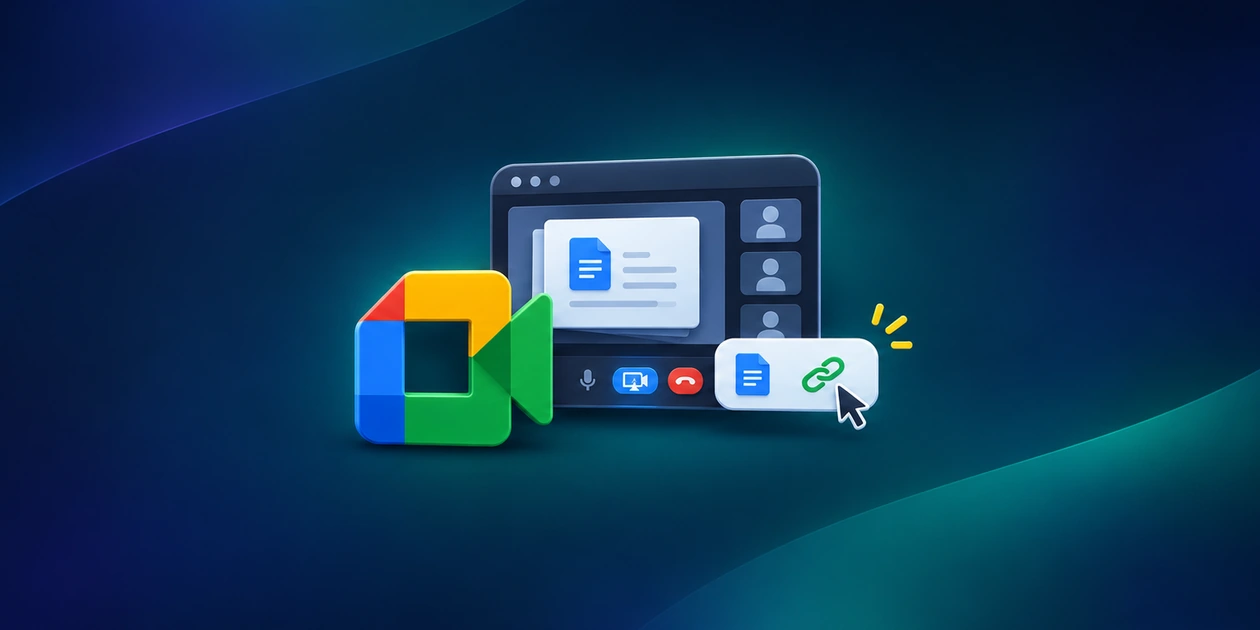
Google Meet is introducing controls that shorten this process for Google Docs, Sheets and Slides. Participants can open the document from the presentation area, while the presenter can adjust access without switching away from Meet. The important distinction remains: sharing an address and granting permission to use the file are separate actions.
What the new controls do
Google’s November 19 Workspace announcement describes three options: sharing a link once, automatically showing file links and updating file access. They bring related tasks closer to the presentation controls.
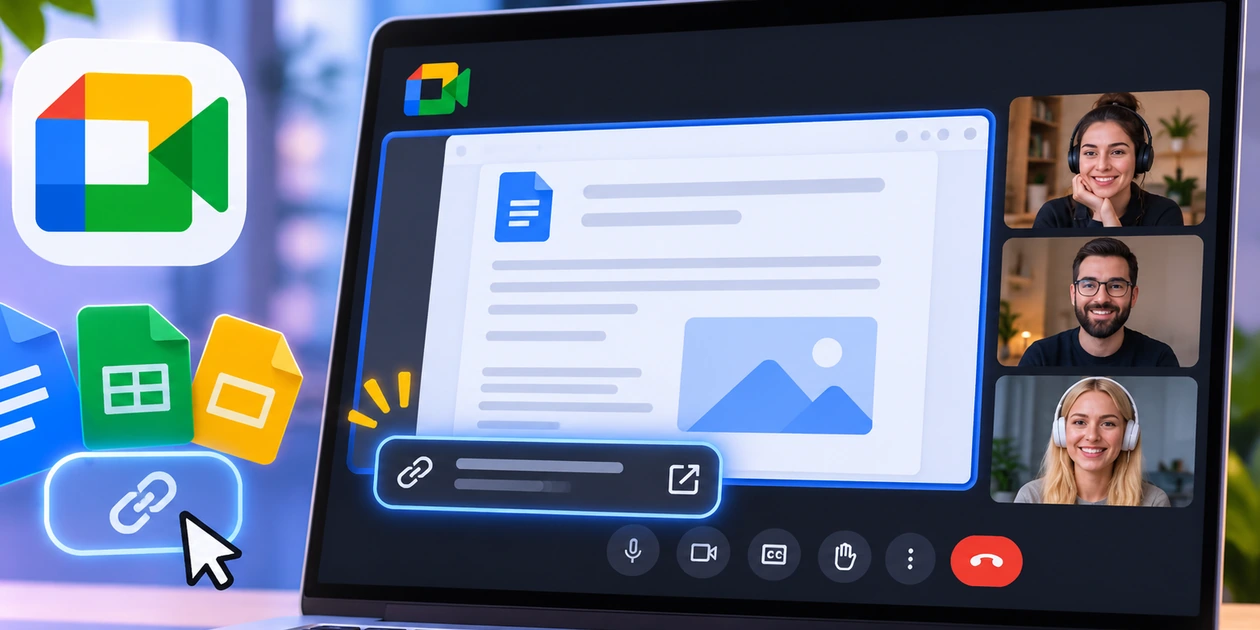
One-time sharing sends the link to the meeting chat and displays a clickable file chip beside the presentation. The automatic option surfaces a chip for presented files, with the preference carrying over to later meetings. Update file access handles permissions inside Meet, avoiding a separate trip to Drive settings.
For the audience, the practical benefit is independent reading. While the presenter explains one section of a spreadsheet, another participant can open the actual document and inspect a relevant row. The shared screen remains the common point of reference, but it no longer has to be the only way to examine the material.
How to try it
The Google Meet presentation guide describes link sharing for Docs, Sheets and Slides. For a first attempt, preparing a dedicated tab with the intended document and trying it in a short test meeting is a useful approach.
Start presenting the document you want participants to open.
Open the presentation controls and find Share file link.
Choose one-time sharing or enable Always share file links for future presentations as well.
If someone cannot open the file, check the permissions through Update file access.
Viewers find the file chip when hovering over the presentation. Those with access can use it to open the document. With automatic sharing enabled, the presenter can still use Send file link to chat separately. Showing a chip automatically should not be confused with sending a new chat message every time a file appears.
This distinction is worth explaining to a team once. Otherwise, someone may look only in the chat, assume that no link was shared and interrupt the meeting even though the document shortcut is already available on the presentation.
Why access requests will still happen
The update improves convenience; it does not replace Drive’s permission model. A document restricted to a particular team remains restricted when an external guest sees its link. Being present in the call does not automatically make someone an editor of the working material.
Google’s Drive sharing guidance distinguishes viewing, commenting and editing. Choose according to the actual task: reading a proposal, leaving feedback and changing its contents are different activities. Granting the widest available permission simply to get a meeting moving again is often unnecessary.
A participant might also be signed in with a different email address from the one given access. In that case, checking the account is a more useful first step than making the document available to anyone with the link. Work and school organisations may also restrict external sharing, and a more convenient button does not remove those policies.
When to share once and when to keep it automatic
Automatic sharing fits a recurring meeting where the same team moves between a plan, a results spreadsheet and a slide deck. People can find the relevant material without a separate explanation every time. Because the setting persists, however, it is worth checking before the next call with a different audience.
One-time sharing is a practical choice for client conversations, interviews or meetings with new partners. It lets the presenter deliberately decide when a particular file should be offered. That is useful when final material is open alongside internal drafts that were never intended for distribution.
There is also a difference between displaying part of a document and inviting people to open its original. A presentation may show one slide or a small area of a spreadsheet, whereas the link opens the file. If an external audience should receive only selected material, prepare a suitable separate version beforehand rather than relying on people to remain on one page.
Independent access can change the rhythm of a meeting, too. Some participants will read ahead. A brief instruction such as “please review the second section while we discuss it” may be more effective than expecting everyone to follow the shared cursor. This is a meeting-design choice, rather than a new product setting.
Availability and rollout
The feature is off by default and is intended for all Workspace customers, Workspace Individual subscribers and personal Google accounts. Availability is gradual rather than simultaneous.
Rapid Release domains began receiving it on November 18, 2026, with a rollout window of up to 15 days. Scheduled Release domains are due to start on December 9, with visibility expected over 1–3 days. As of November 20, a missing control does not necessarily indicate a problem. There is no separate administrator control for this feature, although existing rules for presentations and file sharing still apply.
The change is most useful when a meeting leads directly into reading, reviewing or editing material together. It cannot prepare the document or decide the audience for you. What it can do is make the handover less disruptive, so a conversation spends less time on where the link went and more time on the work it contains.