Your phone says storage is almost full, but the gallery contains years of photographs you want to keep. Moving everything manually is inconvenient, and buying another phone raises a new question about bringing the archive along. Samsung Gallery’s integration with Google storage aims to simplify these everyday tasks while keeping the familiar gallery as the place to browse.
Samsung outlined the service on November 10. Availability begins with selected Galaxy devices running One UI 9 and expands in stages, depending on the model and market. This is an explanation of the current feature, not a claim that every Galaxy already has the same switch.
What changes in everyday use?
The main convenience is access to synced material through Gallery on multiple compatible devices. You might take pictures on a phone and look through them later on a tablet. Both devices need the same Samsung and Google accounts, with syncing enabled.
On a new Galaxy, previews can appear without downloading the entire archive first. That allows browsing to begin without waiting for every large video to transfer. A thumbnail does not, however, mean the original is already available locally. Download essential files before travelling somewhere with unreliable connectivity and check that they open as expected.
It helps to distinguish three things: the original on the phone, the cloud copy and the preview displayed in Gallery. They are related but not identical. Confusion during a cleanup often starts when seeing an image is treated as proof that its full file is stored on that device.
Requirements and setup
Google’s Samsung Gallery Cloud Sync help page specifies a compatible device, Android 17 and a personal Google account. Google Workspace accounts and parent-supervised accounts are not supported. Having Google Photos installed is not enough by itself.
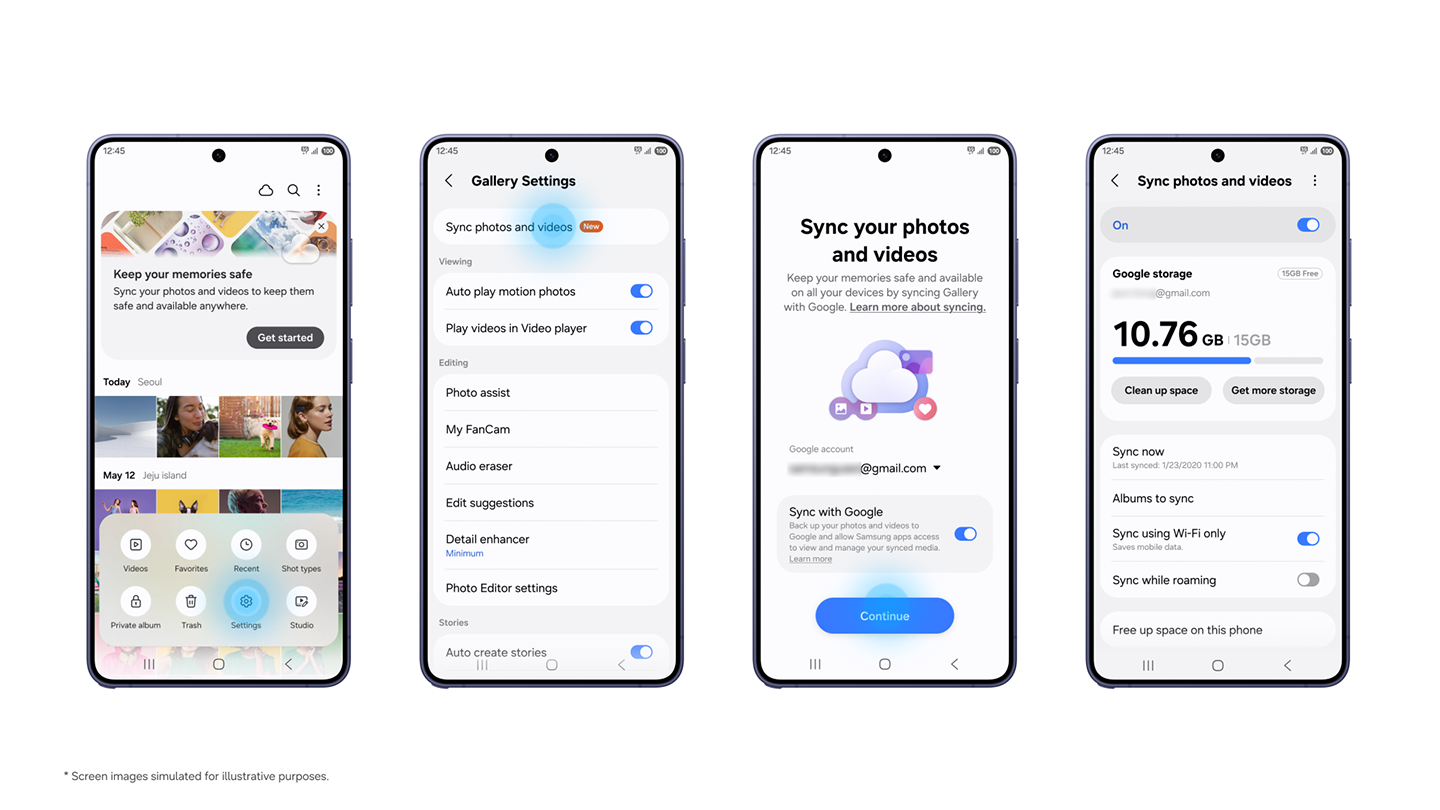
On a supported Galaxy, open Gallery → Menu → Settings → Sync photos and videos. Choose the intended Google account and review the permissions. If several addresses are signed in, check the choice carefully: this determines where the material goes and which account’s available storage it uses.
A small album makes a useful starting point. Wait for syncing to finish and check a few files through another device or Google Photos before applying the same approach to years of pictures. If the setting is missing, establish device and regional support first rather than changing unrelated account settings at random.
This initial check also makes later troubleshooting easier. You know which account was chosen, which album was included and whether the upload completed. Those details are more informative than simply remembering that a cloud symbol appeared on the screen.
Your existing Google Photos archive does not all appear automatically
At launch, Samsung Gallery displays cloud content synced through this integration. Older pictures uploaded to Google by another route do not automatically become visible in Gallery. A missing old image in Samsung’s app is therefore not, by itself, evidence that it has been lost.
There is a limitation in the other direction too. Items uploaded through Gallery are available in Google Photos for basic viewing and sharing, but unless backed up through Google Photos they are excluded from certain features, including search, memories and live albums. Storing a file in Google and receiving every Google Photos library feature are different things.
That matters if search or automatic collections are central to how you find pictures. Before changing the way a large archive is managed, try your normal routine on a small selection. The convenience of one gallery should not obscure the absence of a feature you rely on.
Free up space is different from Delete
Samsung Gallery’s Free up space feature removes local originals after they have been synced. The cloud material remains accessible and Gallery retains thumbnails. It is the relevant tool when the goal is to make room on the phone while keeping the photographs.
Ordinary deletion has a different purpose. Deleting a synced item can propagate to the linked Google storage and other connected devices. Selecting an album and tapping the bin should not be treated as another way of performing a device-only cleanup.
Consider a travel video occupying several gigabytes. If you want to keep it, first verify that uploading has completed, then use the dedicated space-saving feature. If you no longer want the video anywhere, deletion addresses that different goal. The distinction depends on what you intend to preserve, not how large the file is.
After an accidental deletion, check the bin and Google Photos’ current deletion and recovery guidance. Permanently deleted items should not be assumed recoverable. An independent backup remains useful for irreplaceable family material even when syncing is working correctly.
There is no separate free allowance for Gallery
Google’s storage guidance explains that the available allowance is shared across Gmail, Drive and Photos, with up to 15GB included in a free account. If email and documents already occupy most of it, only the remainder is available for pictures. Gallery does not add another separate allocation.
Before paying for a larger plan, review what is using the space. Before enabling a large library, consider the size of its videos and which albums need syncing. If a Google One subscription belongs to a different address, choosing the wrong account does not transfer that subscription’s allowance.
Device storage and cloud storage should also be checked separately. A phone can have plenty of room while its Google account is full, or the opposite. Solving one limit does not necessarily solve the other, so identify which message you are responding to before removing anything.
What former OneDrive users should check
Direct Samsung Gallery syncing with OneDrive ended on September 30, 2026. Previously saved material remains accessible through OneDrive. Connecting the new Google option should not be interpreted as automatic migration of that older cloud archive.
Before cleaning up, establish what is on the phone, what remains in OneDrive and what has already reached Google. This does not require an elaborate spreadsheet: inspect a few important albums and confirm access to their originals. With those checks completed, the new integration is easier to use confidently because you know where a picture is stored and what a particular action will remove.